
- Using CartFlows with Custom Templates
- Using CartFlows with Beaver Builder
- Hiding Checkout Fields on the Checkout Page
- Global Checkout
- Using WooCommerce
- Installing WooCommerce
- General Settings Overview
- Using Your Theme's Header & Footer in a Step
- Embedding a Checkout Form on the CartFlows Checkout Page
- Hiding WooCommerce Pages and Products
- Dynamic Offers aka Rule Engine
- Instant Layout for Checkout and Thank You Step
- Adding Products from the URL to the Checkout Page
- Setting Up A/B Testing for Steps
- Deleting Plugin Data During Uninstallation
- Importing Ready-Made Templates for Flows and Steps
- Importing and Exporting Funnels and Individual Page Builder Templates
- URL Parameters
- Replacing the Main Checkout Order with an Upsell or Downsell
- Rolling back to a Previous Version
- Google Address Autocomplete
- Flatsome UX Builder
- ActiveCampaign
- Paypal Reference Transactions
- How PaypPal/Stripe Works
- Enabling Enfold Avia Layout Builder
- Setting Up Authorize.net for Upsell & Downsell
- Supported Payment Gateways
- Setting Up A/B Testing with Google Optimize
- Setting Quantity and Discount for Products on the Checkout Page
- Flow in Test Mode
- Troubleshooting Plugin and Theme Conflicts
- Resolving the "Please Select a Simple, Virtual, and Free Product" Error
- Resolving the Endless Loading Issue on Checkout
- Resolving the "Order Not Found" Error on Thank You Page
- Resolving the "Checkout ID Not Found" Error
- Resolving the "Session Expired" Error
- Resolving "Order Does Not Exist" Error on Upsell/Downsell Page
- Resolving "Sorry, This Product Cannot Be Purchased" Error
- Resolving "No Product is Selected" Error
- Disabling Auto-fill of Address Fields Based on Zip Code
- Enabling Theme's Scripts & Styles Without Changing Page Template
- Disabling Auto-fill of Checkout Fields
- Allowing Cache Plugins to Cache CartFlows Pages
- Changing the "Choose a Variation" Text
- VAT Field Not Displaying for WooCommerce EU/UK VAT Compliance Plugin
- Enabling the Product Tab on Store Checkout
- Displaying the Order Summary Open on Mobile Devices
How Coupons Work?
Coupons are a great business tool for offering discounts to your customers. This is a good strategy to increase your sales.
When you offer a Coupon Code and customers apply it at the Checkout Page or it’s automatically applied, the discount value (amount or percentage) of the coupon code will be deducted from the subtotal.
Enabling the Use of Coupons
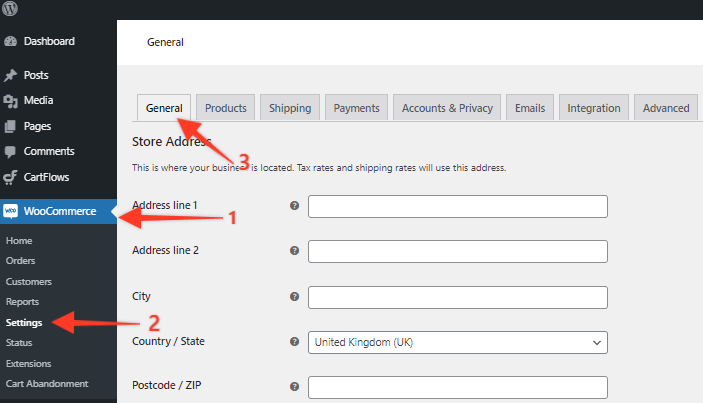
To add coupons on your online store, make sure that it is enabled in your WooCommerce Settings. From your WordPress dashboard, go to WooCommerce > Settings.
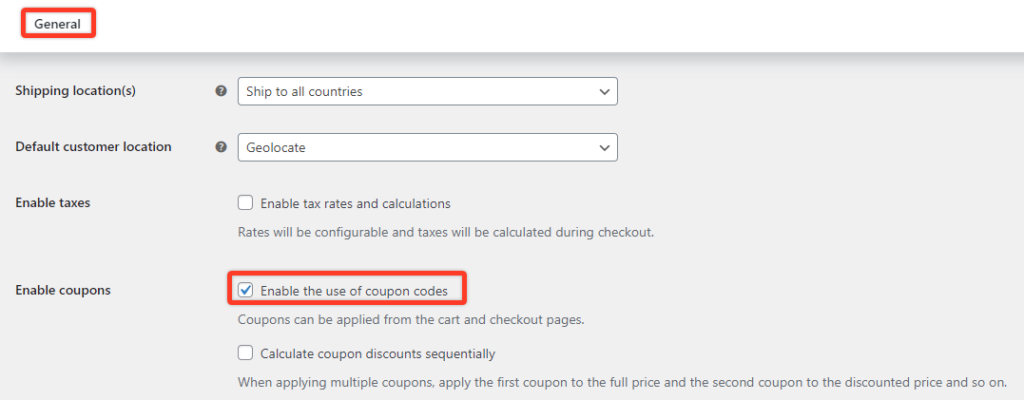
In the General Options section under the General Tab, tick the Enable the use of coupon codes checkbox.
Adding Coupons
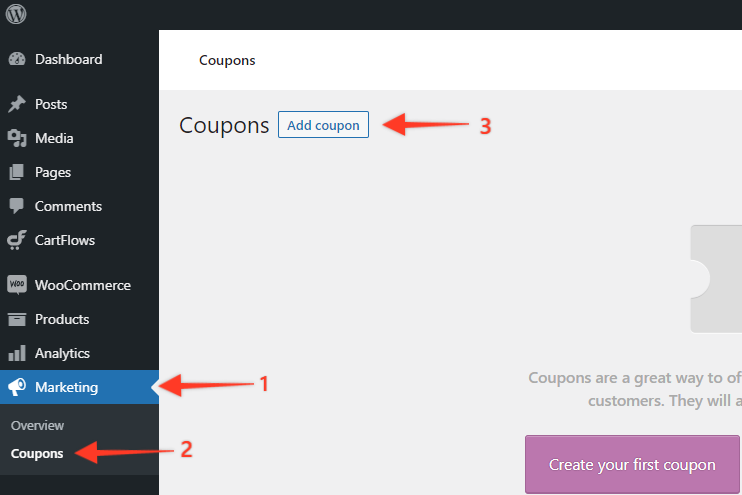
You can create coupons from WooCommerce > Coupons. Click on the Add Coupon button.
You can create your own coupon code name or generate a coupon code by clicking on the Generate coupon code button. You can add a description of your discount if you want. This helps you remember what the coupon code is for.
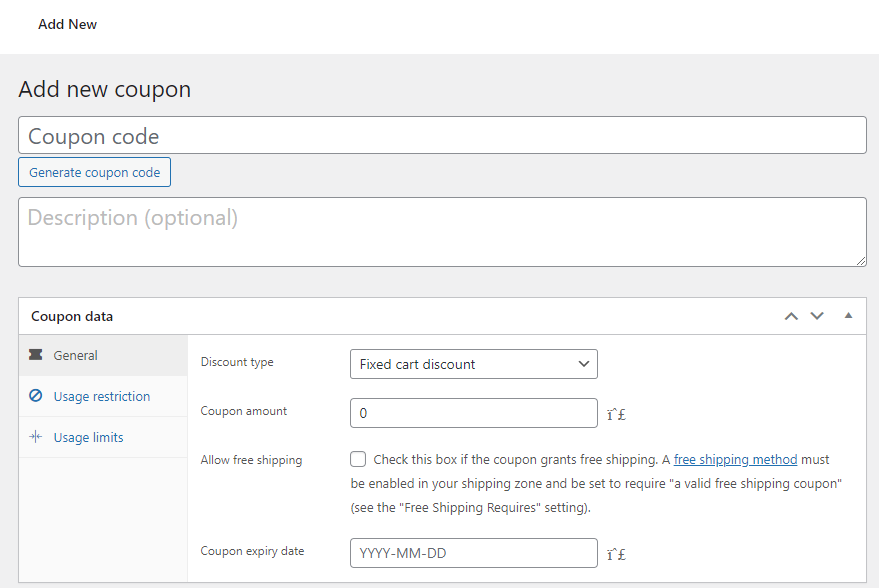
In the Coupon Data section, you can configure the settings of your coupon code.
General
- Discount type – Select whether the coupon is a percentage discount, fixed cart discount, or fixed product discount.
- Coupon amount – Enter the fixed value or percentage of the discount.
- Allow free shipping – Tick the checkbox if the coupon removes the shipping cost.
- Coupon expiry date – You can set an expiration date for the validity of the coupon.
Usage Restriction
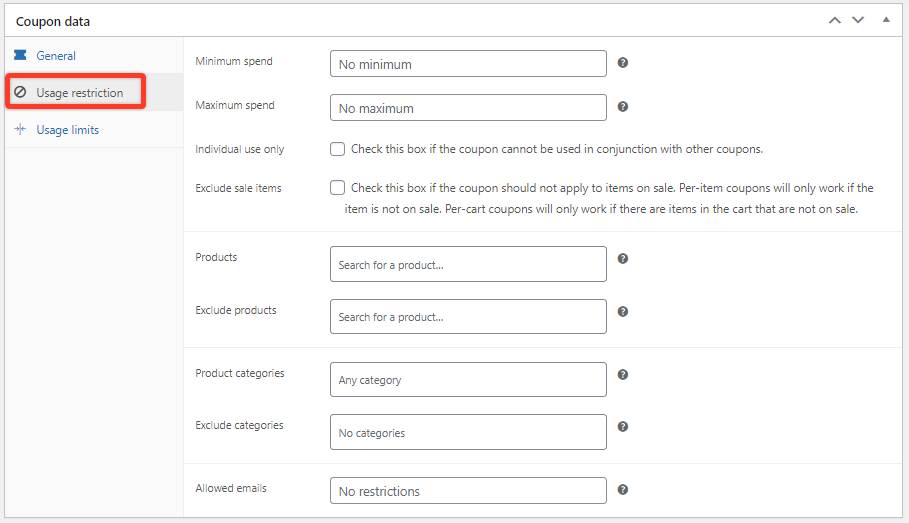
- Minimum spend – minimum subtotal allowed to use the coupon.
- Maximum spend – maximum subtotal allowed to use the coupon.
- Individual use only – Tick the checkbox to prevent customers from using multiple coupons at once.
- Exclude sale items – Tick the checkbox to exclude products that are already on sale.
- Products – Select specific products where the coupon can be applied.
- Exclude products – Select specific products where the coupon can not be applied.
- Product categories – Select specific categories where the coupon can be applied.
- Exclude categories – Select specific categories where the coupon can not be applied.
- Allowed emails – Add specific email addresses that are allowed to use the coupon.
Usage Limits
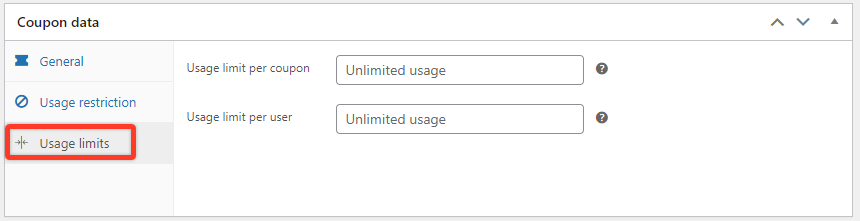
- Usage limit per coupon – Set the number of times that a coupon can be applied.
- Usage limit per user – Set the maximum number of times that a customer can use the coupon.
Once you’ve completed the setup of your coupon, simply hit the Publish button.
To learn more about the Coupon Code configurations, visit this link.
Applying Coupon in the CartFlows Checkout Page
There are two ways that a coupon can be applied to a Checkout Page.
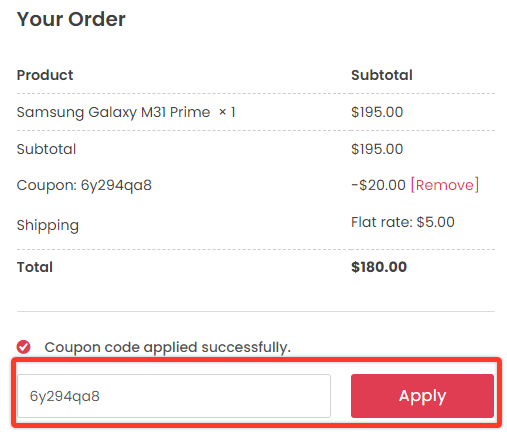
- A customer enters the coupon code in the Coupon Field.
- The coupon code is automatically applied.
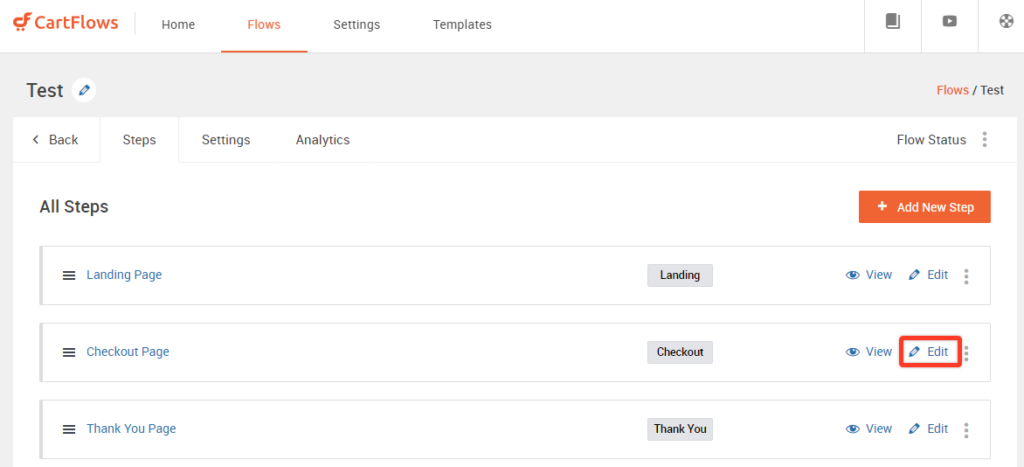
To edit your checkout page, from your WordPress dashboard, go to CartFlows > Flows. Select a Flow, then click on Edit.

Click the corresponding Edit link for the Checkout Page.
Manual Application of the Coupon Code
Scroll down to the Checkout Layout section. In the Checkout Fields tab, make sure that the Enable Coupon Field checkbox is ticked. Click Update.
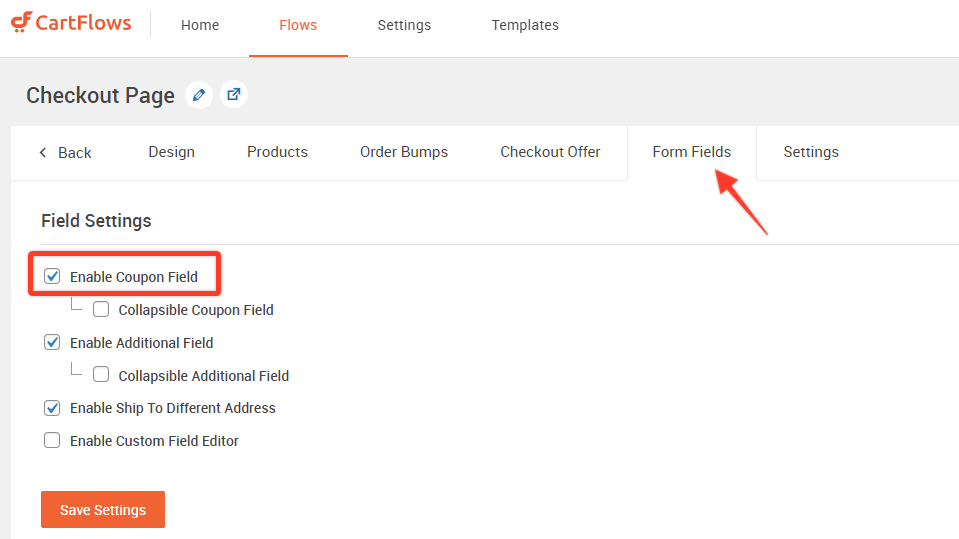
This allows the customer to manually enter a coupon code in the checkout page.
Automatic Application of the Coupon Code
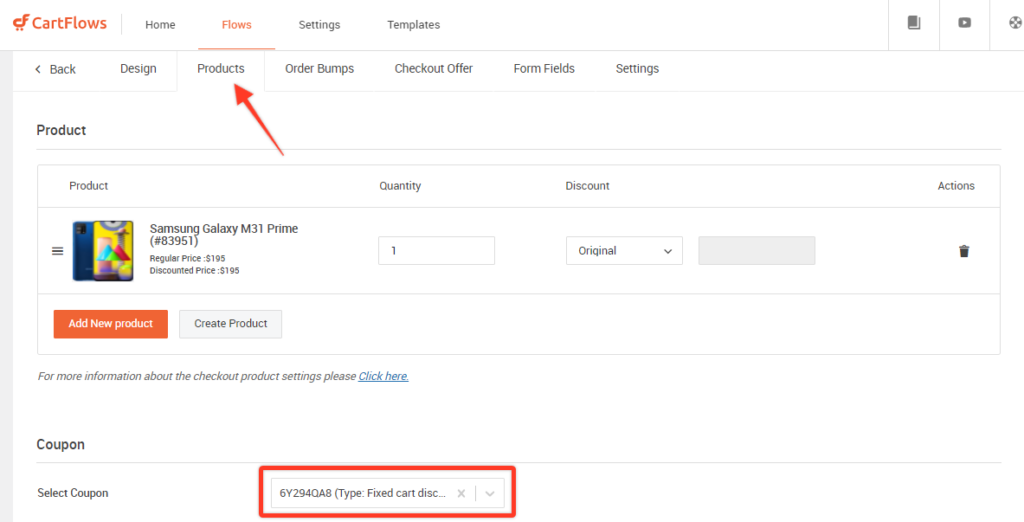
You can set a specific coupon in the checkout page so that the customers do not need to enter a coupon code and it automatically discounts the product.
In the Select Product tab, select a coupon in the Apply Coupon field. Click Update.
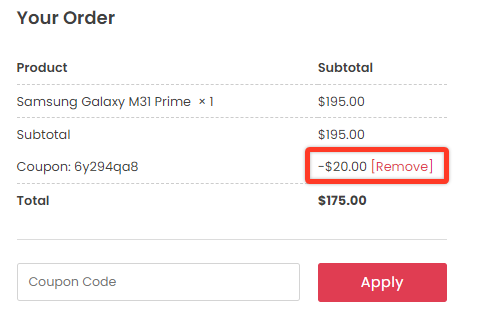
You might also want to disable the Coupon Field by deselecting the checkbox in the Checkout Fields tab.
This automatically calculates the discount and the customer cannot add another coupon code.
We don't respond to the article feedback, we use it to improve our support content.
