
- Using CartFlows with Custom Templates
- Using CartFlows with Beaver Builder
- Hiding Checkout Fields on the Checkout Page
- Global Checkout
- Using WooCommerce
- Installing WooCommerce
- General Settings Overview
- Using Your Theme's Header & Footer in a Step
- Embedding a Checkout Form on the CartFlows Checkout Page
- Hiding WooCommerce Pages and Products
- Dynamic Offers aka Rule Engine
- Instant Layout for Checkout and Thank You Step
- Adding Products from the URL to the Checkout Page
- Setting Up A/B Testing for Steps
- Deleting Plugin Data During Uninstallation
- Importing Ready-Made Templates for Flows and Steps
- Importing and Exporting Funnels and Individual Page Builder Templates
- URL Parameters
- Replacing the Main Checkout Order with an Upsell or Downsell
- Rolling back to a Previous Version
- Google Address Autocomplete
- Flatsome UX Builder
- ActiveCampaign
- Paypal Reference Transactions
- How PaypPal/Stripe Works
- Enabling Enfold Avia Layout Builder
- Setting Up Authorize.net for Upsell & Downsell
- Supported Payment Gateways
- Setting Up A/B Testing with Google Optimize
- Setting Quantity and Discount for Products on the Checkout Page
- Adding Custom Support for Payment Gateways in One-Click Upsell & Downsell
- Creating Subscription Products in WooCommerce for CartFlows Pages
- Supported Multi-Currency Plugins
- Enabling/Disabling Shipping Fields and Ship to Different Address
- Enabling/Adding Coupons on the Checkout Page
- Displaying Account Creation Fields on the Checkout Page
- Setting Up Square Gateway for Upsell & Downsell
- CartFlows Elementor Widgets
- CartFlows Beaver Builder Modules
- CartFlows Block Editor Blocks
- Importing Divi Templates
- Bricks Builder
- SureTriggers
- Connecting Stripe Payment Gateway
- LearnDash
- Facebook Pixel
- How to Enable TikTok Pixel Tracking in CartFlows?
- Google Ads Pixel
- How to Enable Pinterest Pixel Tracking in CartFlows?
- How to Enable Snapchat Pixel Tracking in CartFlows?
- Flow in Test Mode
- Troubleshooting Plugin and Theme Conflicts
- Resolving the "Please Select a Simple, Virtual, and Free Product" Error
- Resolving the Endless Loading Issue on Checkout
- Resolving the "Order Not Found" Error on Thank You Page
- Resolving the "Checkout ID Not Found" Error
- Resolving the "Session Expired" Error
- Resolving "Order Does Not Exist" Error on Upsell/Downsell Page
- Resolving "Sorry, This Product Cannot Be Purchased" Error
- Resolving "No Product is Selected" Error
- Disabling Auto-fill of Address Fields Based on Zip Code
- Enabling Theme's Scripts & Styles Without Changing Page Template
- Disabling Auto-fill of Checkout Fields
- Allowing Cache Plugins to Cache CartFlows Pages
- Changing the "Choose a Variation" Text
- VAT Field Not Displaying for WooCommerce EU/UK VAT Compliance Plugin
- Enabling the Product Tab on Store Checkout
- Displaying the Order Summary Open on Mobile Devices
How to Enable Snapchat Pixel Tracking in CartFlows?
CartFlows v2.1.0 now includes native integration for Snapchat Pixel, enabling you to track user actions and optimize your Snapchat ad campaigns effortlessly. This article provides a step-by-step guide to setting up and using Snapchat Pixel in CartFlows
Let’s get started.
Pre-requisites –
There are few Pre-requisites like –
- You need to create a Snapchat ADs account.. Haven’t Setup yet? – follow the steps here
- Next, you need to get the Snapchat ID, follow the steps here.
- Copy the Snapchat ID, you will need to paste it in the CartFlows Settings
Steps to Add Snapchat Pixel ID in the CartFlows Settings –
Step 1: From your WordPress dashboard, go to CartFlows > Settings > Integrations
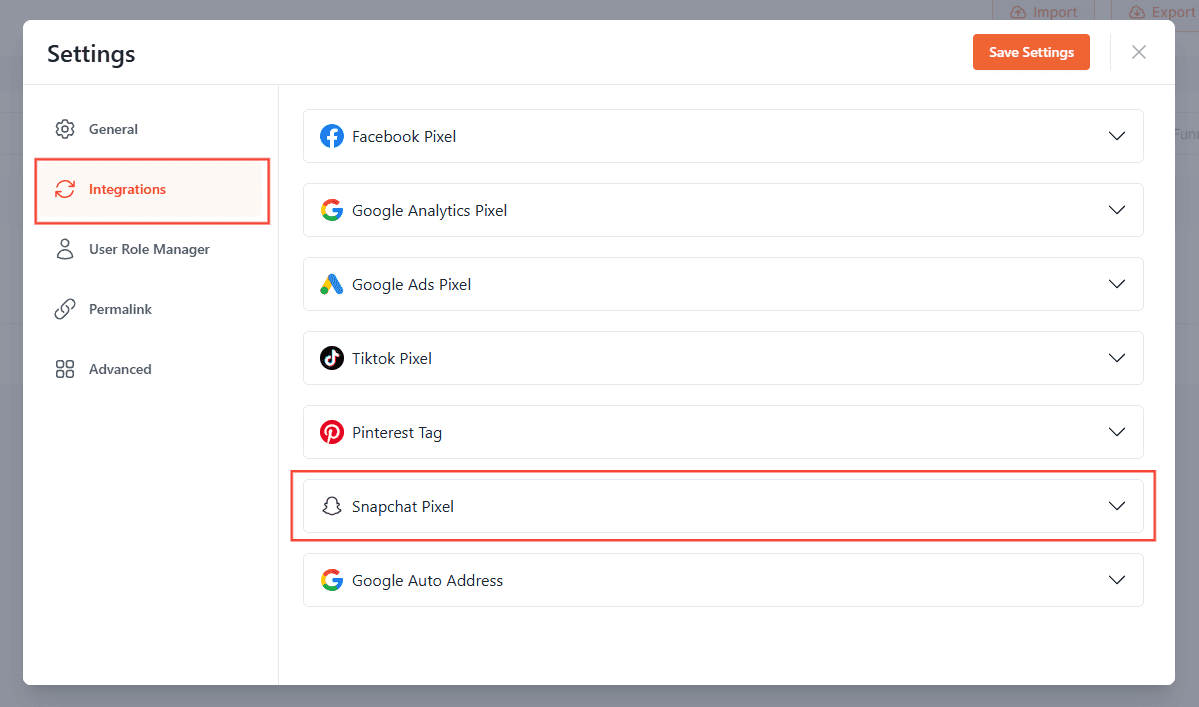
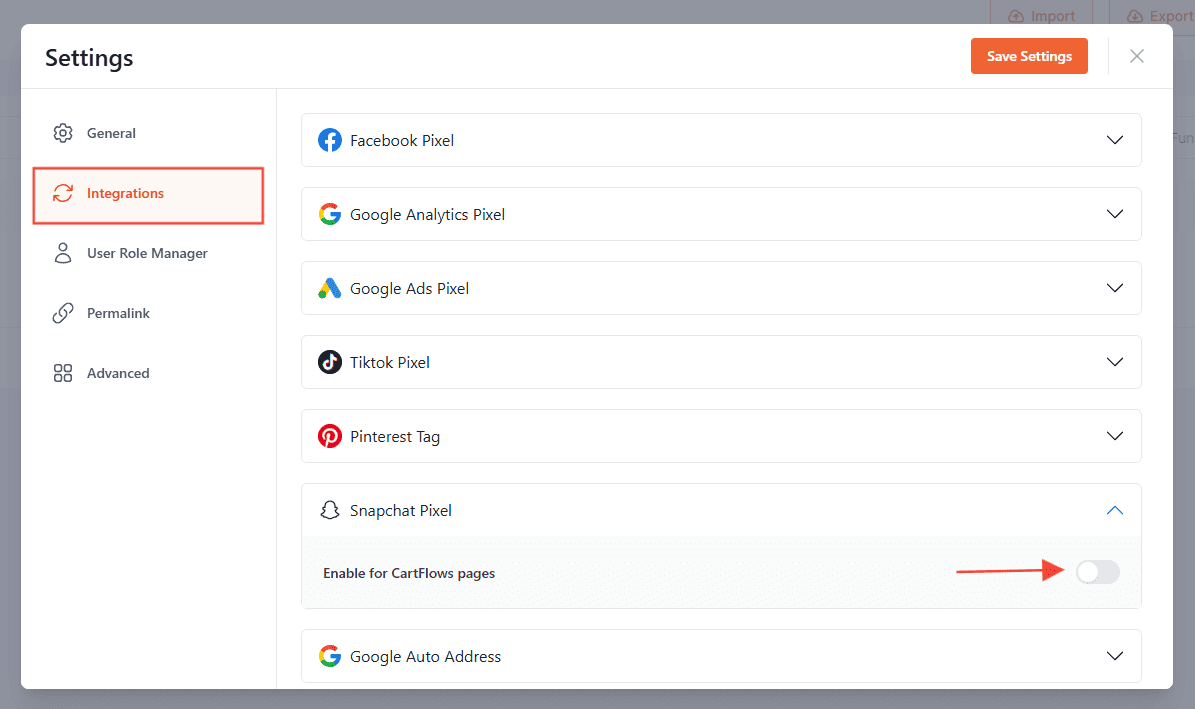
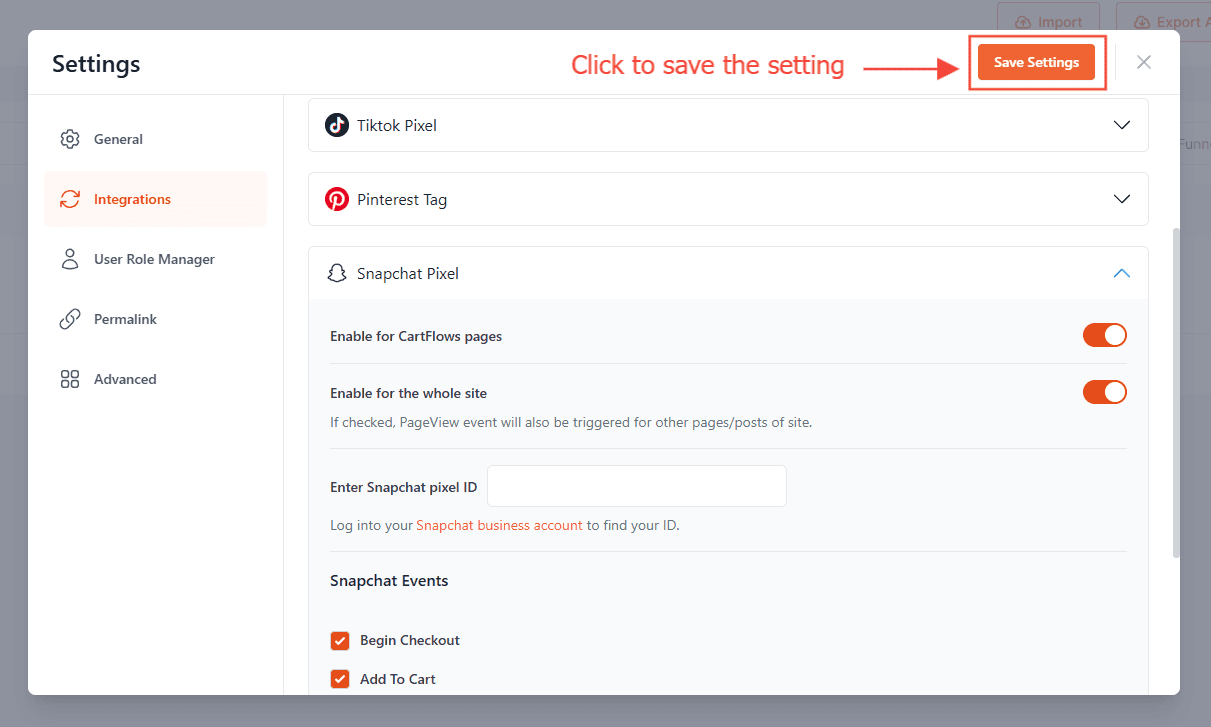
Step 2: Scroll down to the Snapchat Pixel Settings and enable the option – Enable for CartFlows pages.
Step 3: Now, you will see a field to insert the Snapchat pixel ID. You can paste your Snapchat ID there.
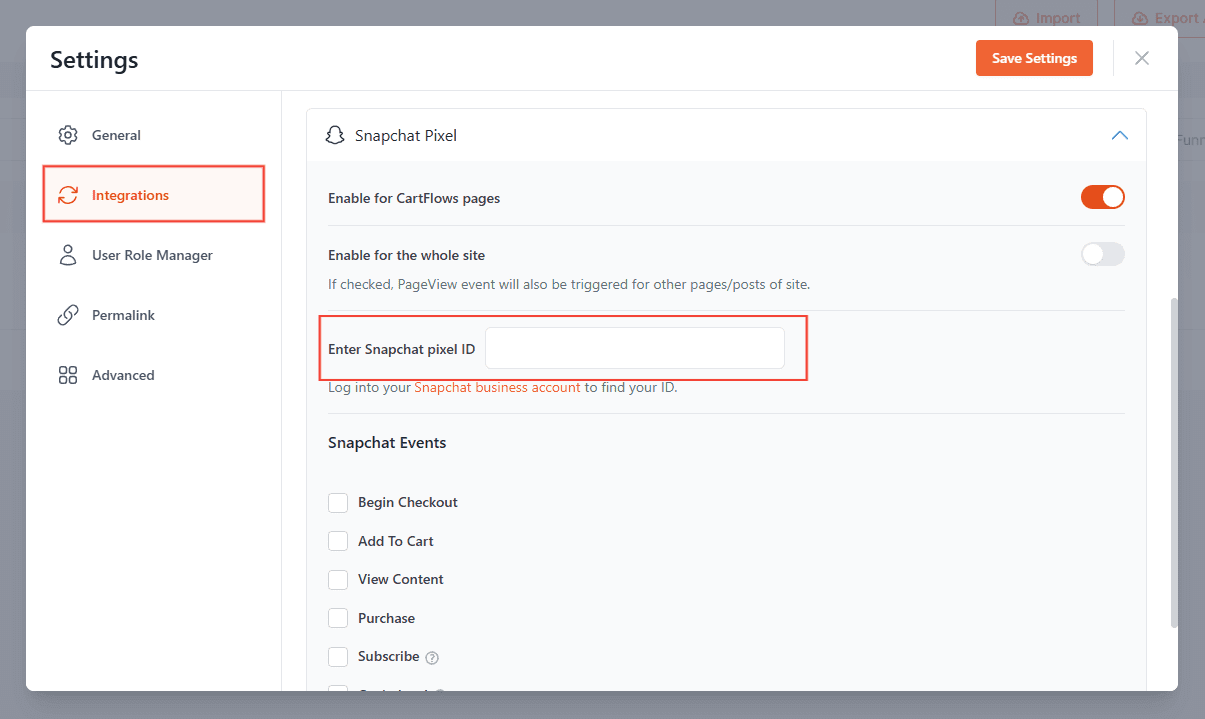
After adding the pixel ID you can enable the option to add the Snapchat Tracking code to enable the Snapchat Tracking Code on the whole website.
Step 4: Next, you can enable the Events which CartFlows provides, they are –
- Begin Checkout
- Add To Cart
- Add Payment Info
- Purchase
- Subscribe
- Optin Lead
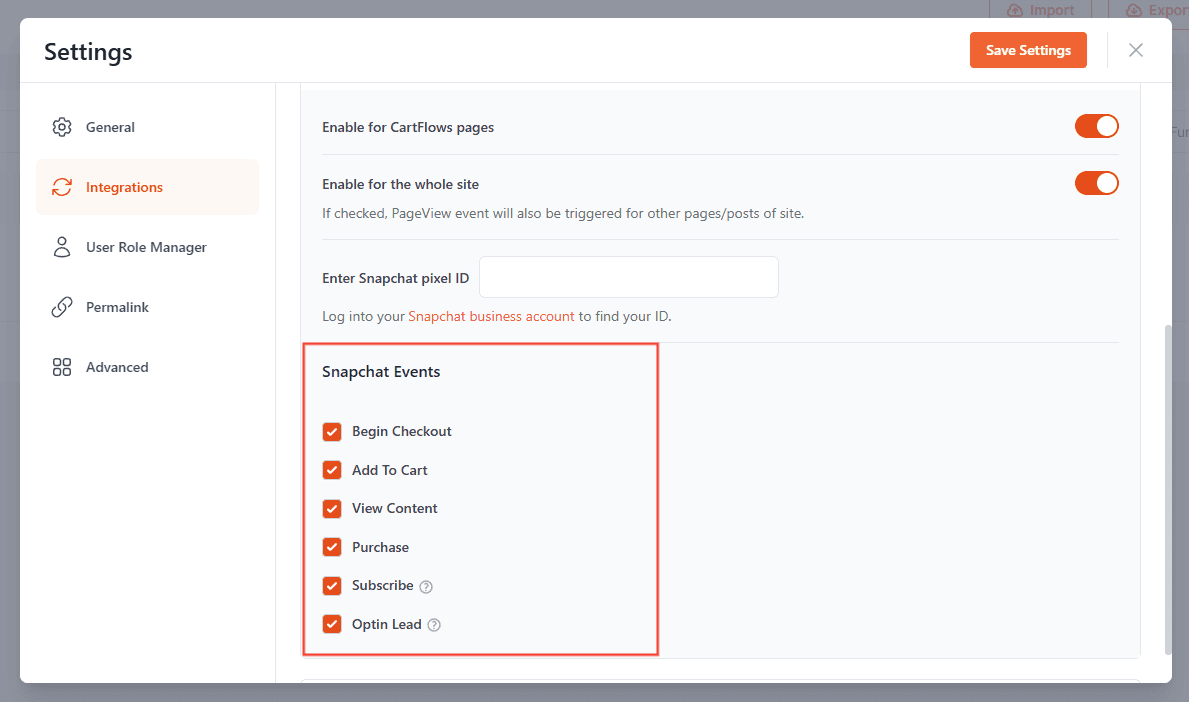
Step 5: Just Save the Changes and you have successfully added Snapchat Pixel for the CartFlows.
We don't respond to the article feedback, we use it to improve our support content.
